 Get App
 01 / 10 sections
Product features
Show product details with feature layouts, image hotspots, comparison tables, and specifications.
Make the details easier to explore
A section library for Shopify themes
Stackly brings together ready-to-use theme sections for product details, brand stories, customer content, FAQs, and more. Choose the pieces that fit your store.
Inside the library
Start with a specific job for your page, then find a section designed to help you do it.
01 / 10 sectionsShow product details with feature layouts, image hotspots, comparison tables, and specifications.
Make the details easier to explore 02 / 9 sections
Build context with editorial stories, image-led layouts, timelines, and trust-building content.
Give your story its own space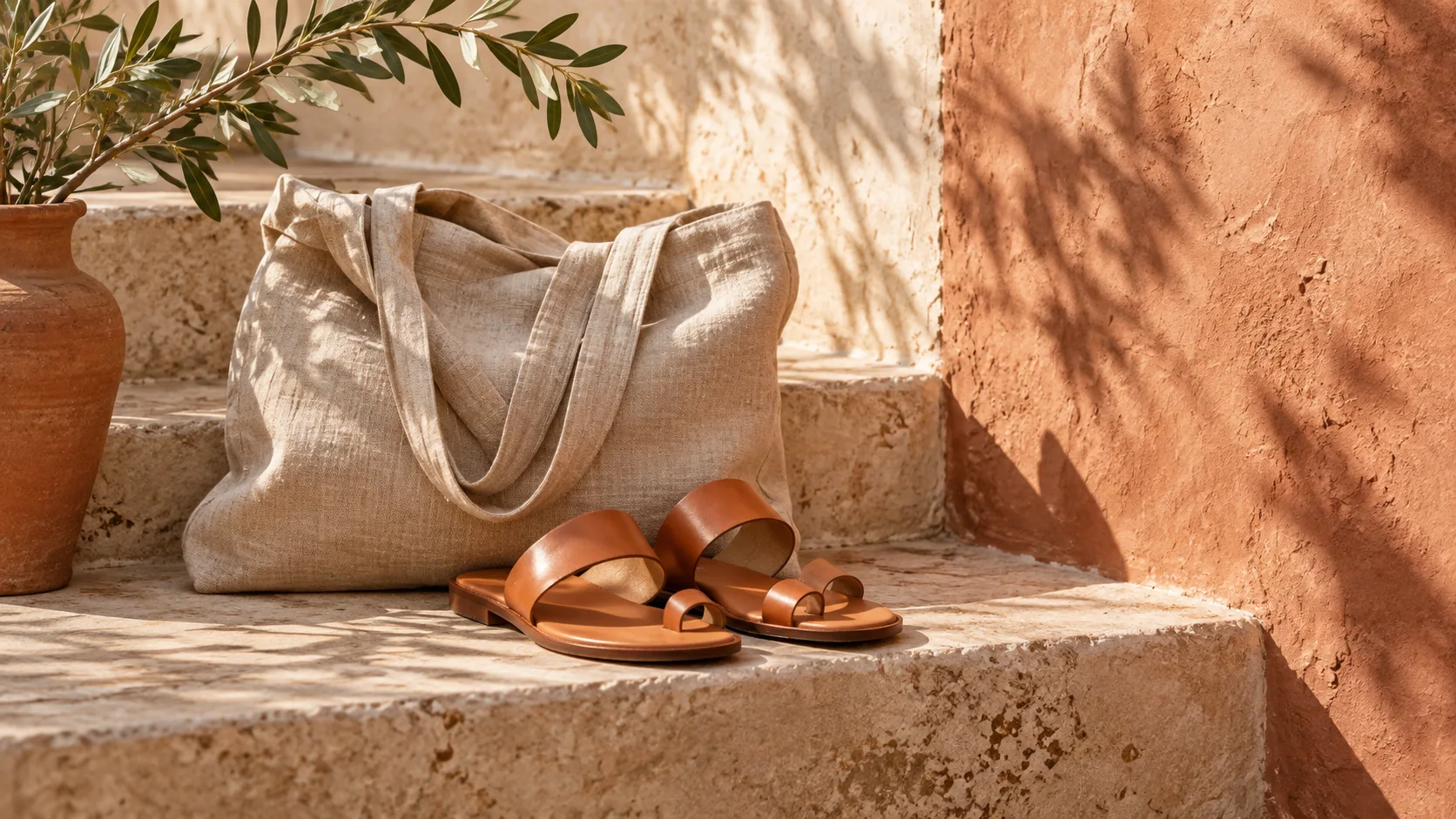 03 / 5 sections
Bring customer photos, reviews, quotes, and social content into your storefront.
Put customer voices in view04 / 7 sectionsCreate room for a strong hero, FAQs, video, tabs, and other useful page elements.
Bring key page moments togetherSection imagery shown here is illustrative and will be replaced with final section previews.
From selection to storefront
Stackly delivers the section to your theme. Shopify’s theme editor is where you place it and decide when to publish.
Browse the library in Stackly and pick the one you want.
Buy that section once through Shopify’s billing flow.
Choose a theme. Stackly writes the section file into it.
Add it in the theme editor, customize it, then publish when ready.
Adding a section file does not place it on a page or publish your theme.
A purchase that stays with your store
A section purchase is a one-time purchase for the Shopify store where you bought it. It is not shared automatically with other stores on the same account.
Add a purchased section to any theme in the same store, and use it more than once in a theme.
If you uninstall Stackly, files already added to your themes stay there. Reinstall on the same store and your purchased-section list returns.
Add your purchased section to the new theme from Stackly, then place it in that theme’s editor.
TRY IT IN STACKLYTry it in context
Each section includes preview imagery. In Stackly, use Try to open the isolated Shopify preview store and explore the section in a real theme editor.
Your theme changes go live only when you choose to publish the theme in Shopify.
Themes & updates
Stackly sections support Online Store 2.0 themes. Shopify platform changes may affect compatibility over time. Sections already added to a theme do not update automatically.
Read compatibility and update guidanceA few useful answers
Make your next page feel like yours